Microsoft 365: sandpie can read your mail and manage your calendar
Connect your Microsoft 365 account once and ask sandpie to go through your inbox, draft replies, or find a free slot and book a meeting. You decide what it can do, permission by permission.
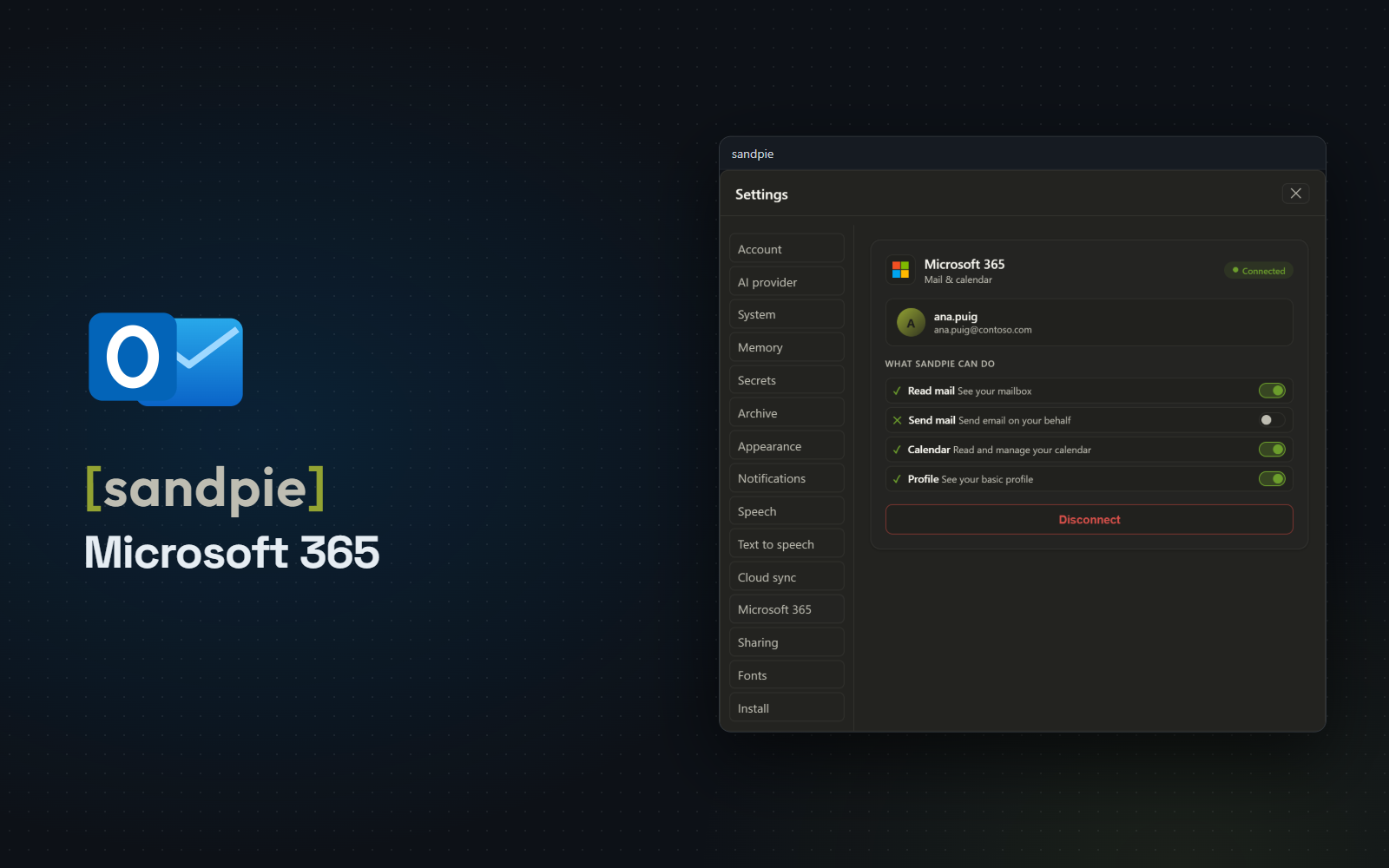
sandpie can now work with your Outlook mail and calendar. Ask it things like:
- "What did I get from suppliers this week? Summarise anything that needs an answer."
- "Find me a free hour with nothing else on Thursday afternoon and put Compressor review in it."
- "Draft a reply to the last email from Marta saying we can deliver on the 30th."
It works in the browser, the desktop app and the Android app, and it is turned off until you connect it.
Set it up
- Open Settings (the gear button, or click your avatar at the bottom-left) and go to the Microsoft 365 tab.
Choose what sandpie may do before you connect. Each switch is one permission:
Permission What it allows Default Read mail See your mailbox On Send mail Send email on your behalf Off Calendar Read and manage your calendar On Profile See your basic profile On - Click Connect with Microsoft. A Microsoft window opens: sign in with your GasN2 account and accept. The window closes by itself and you are back in sandpie.
- The card now says Connected and shows your account. That's it.
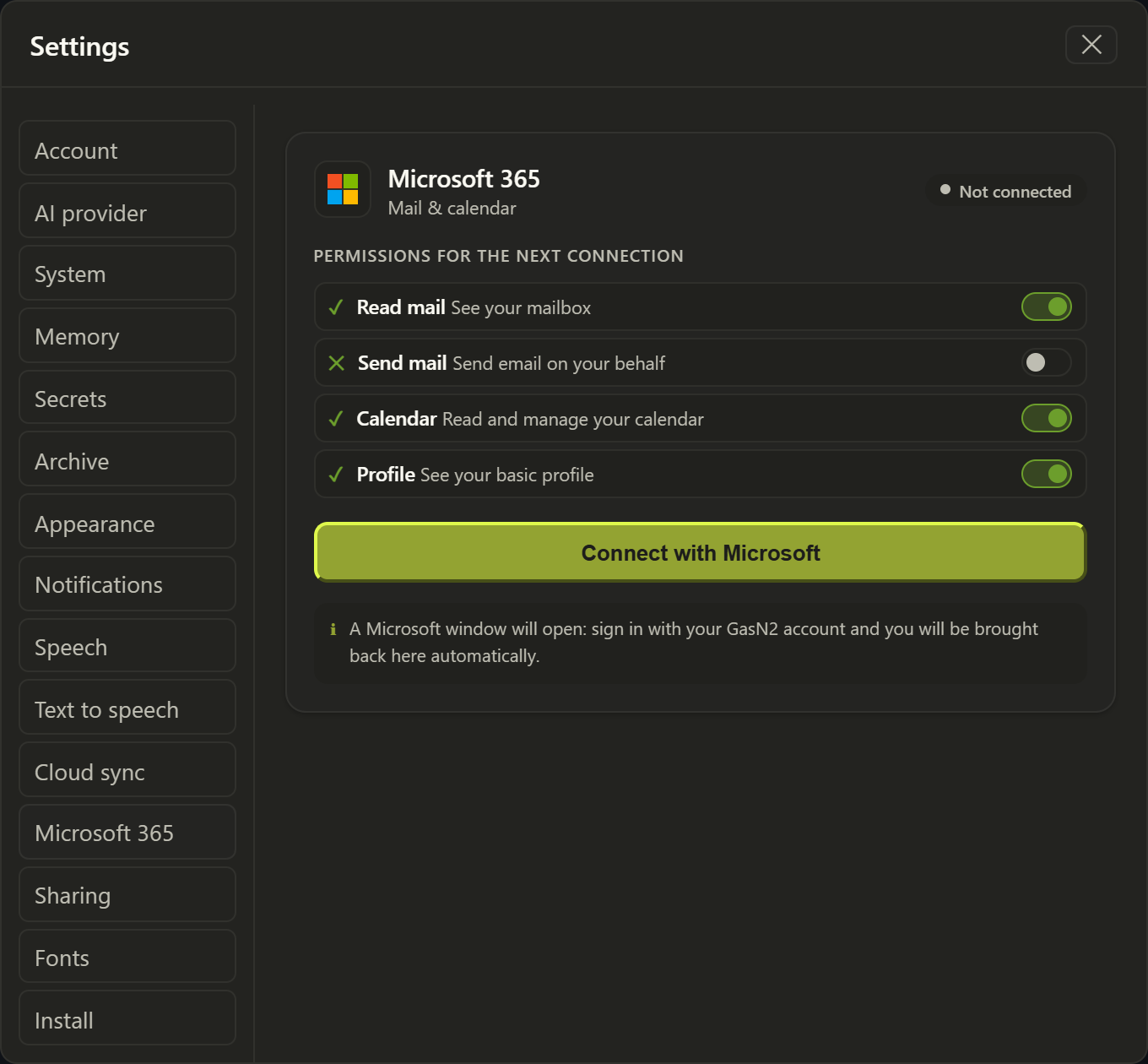
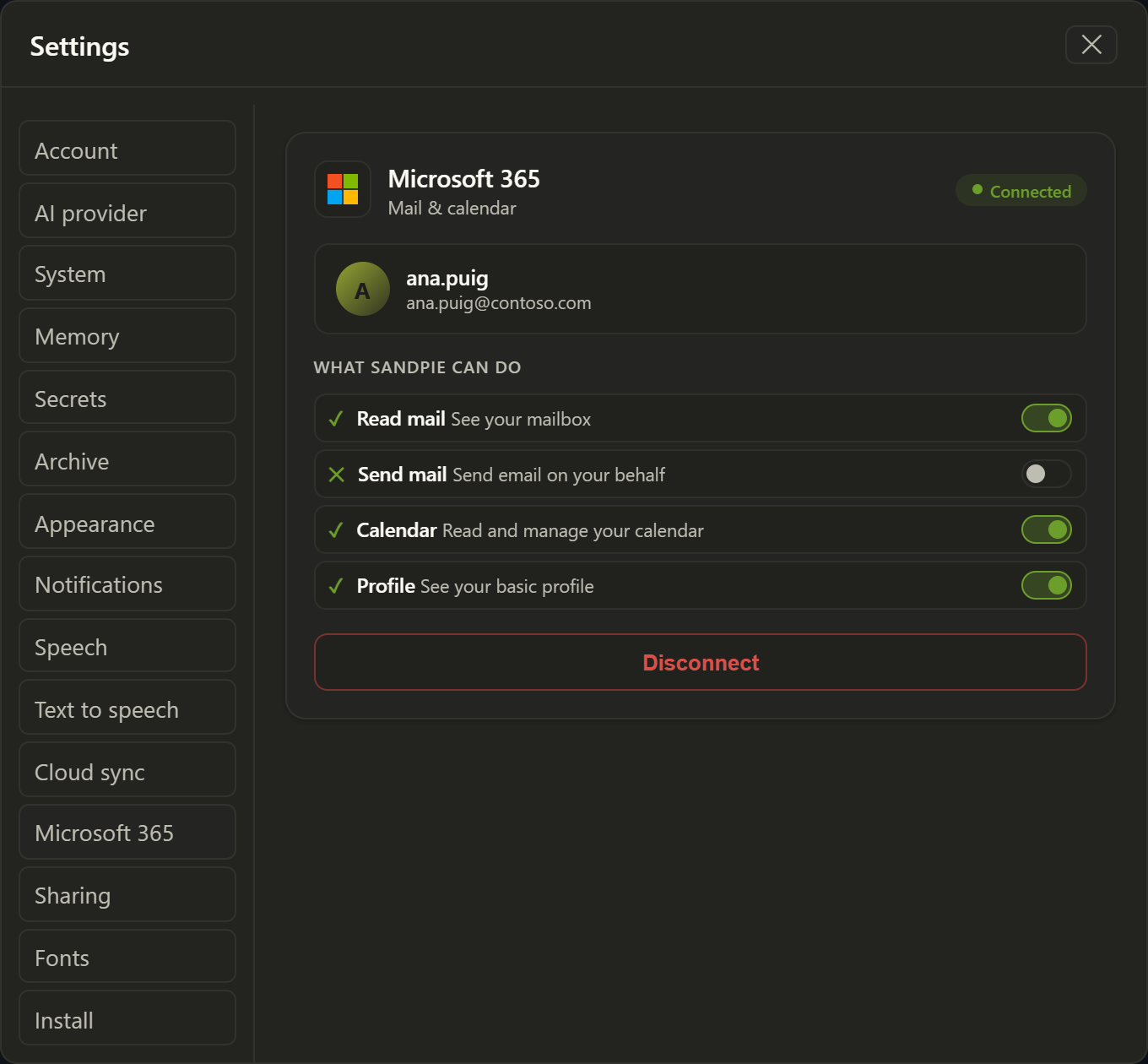
Tip: Only switch on Send mail if you want sandpie to send emails for you. Even then it always shows you the complete draft and waits for an explicit "yes, send it" before sending; it never sends in the same step as the request.
How it works
- When you connect, sandpie adds a Microsoft 365 skill to your skills (marked as a plugin skill). The skill teaches the assistant how to read mail, send it and work with calendar events. It disappears again when you disconnect.
- Your Microsoft sign-in stays on the sandpie server. The browser never receives a Microsoft token: the assistant asks the server, and the server makes the call to Microsoft for you.
- The server checks your permissions on every call. If Calendar is off, a calendar request is refused even if the assistant tries it, and sandpie tells you to switch it on in Settings → Microsoft 365.
- Times are read in Spanish time (Europe/Madrid).
What the assistant can do with each permission:
- Read mail: list recent messages, open a message, search folders.
- Send mail: send a message (after your confirmation).
- Calendar: list events in a date range, create, edit and delete events.
- Profile: your name and email, plus your contacts.
Change permissions or disconnect
- Turn a permission off: flip its switch. It applies straight away.
- Turn a permission on while connected: flip its switch and a Microsoft window opens again to approve the new permission.
- Disconnect: the red Disconnect button. sandpie forgets your Microsoft sign-in and also signs it out at Microsoft, so the next connection starts fresh.
- Session expired: if the card shows Session expired, click Reconnect.
Good to know
- It covers mail and calendar (and contacts). OneDrive, SharePoint and Teams are not connected.
- It only works with your GasN2 account, and you need to be signed in to sandpie (it is not available in guest mode).
- For admins: the connection uses sandpie's existing Microsoft sign-in app registration, with the delegated permissions Mail.Read, Mail.Send, Calendars.ReadWrite, User.Read and offline_access. Users don't need to configure anything.