sandpie for Windows: the desktop app
Install sandpie on your PC and each conversation can work in a real folder on your computer, run commands there and keep a history of every change, so anything can be undone. It updates itself.
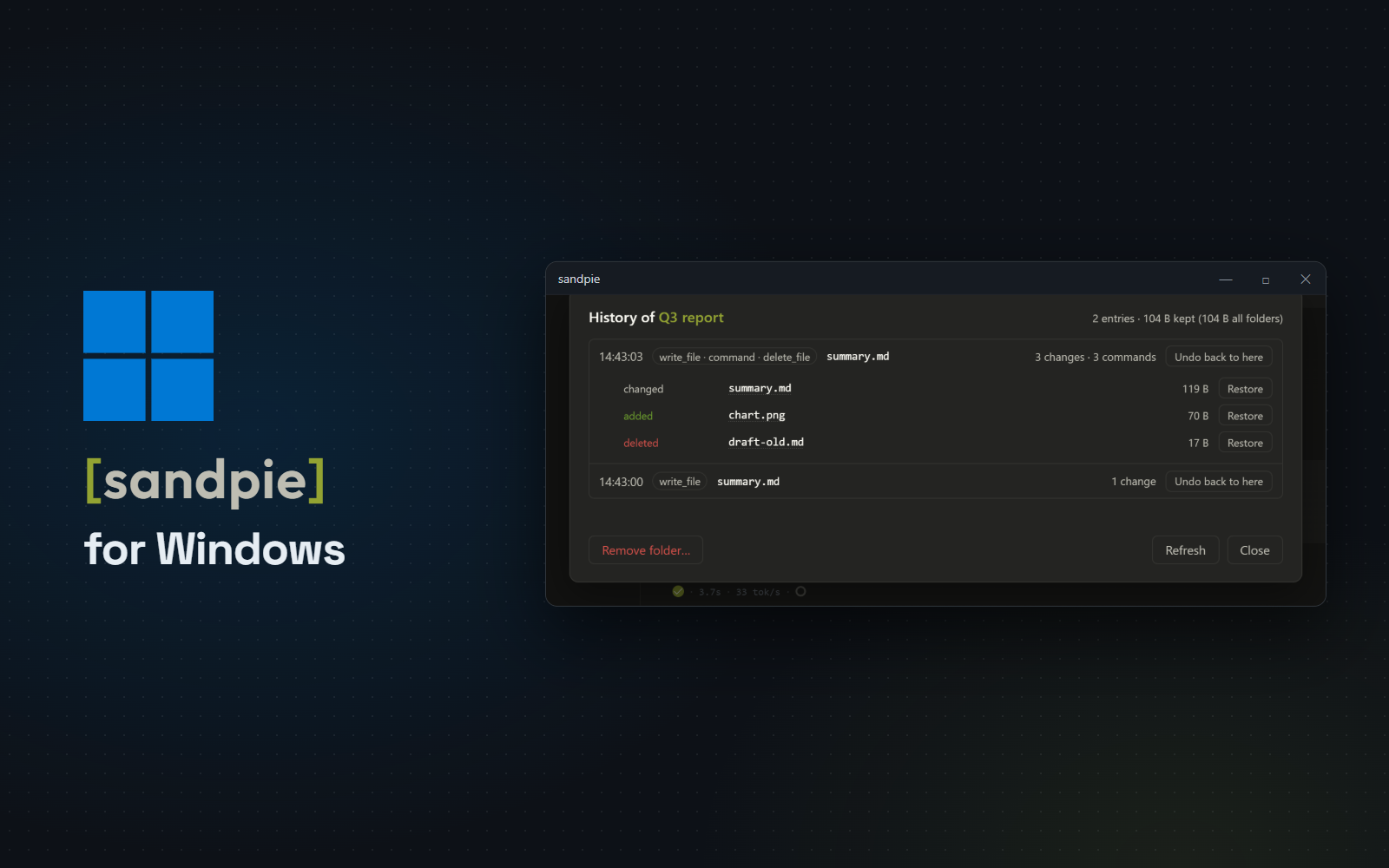
sandpie now has a desktop app for Windows. It is the same sandpie you use in the browser (same chats, same settings, always the latest version), plus one big thing the browser can't do: it can work directly on your PC.
- Each conversation can have its own folder on your PC. The assistant reads and writes the real files there.
- It can run commands on your PC (PowerShell): convert files, run scripts, use the programs you have installed.
- Every change it makes is kept in a history, so you can restore a file or rewind the whole folder.
Download for Windowssandpie.app/download/windows
Install
- Download it: sandpie for Windows, or in sandpie go to Settings → Install → Download for Windows.
- Open the downloaded
sandpie-setup-….exe. If Windows says the publisher is unknown, choose More info → Run anyway. - It installs for your user only (no administrator rights needed) and adds a sandpie shortcut to the desktop and the Start menu.
- Sign in as usual.
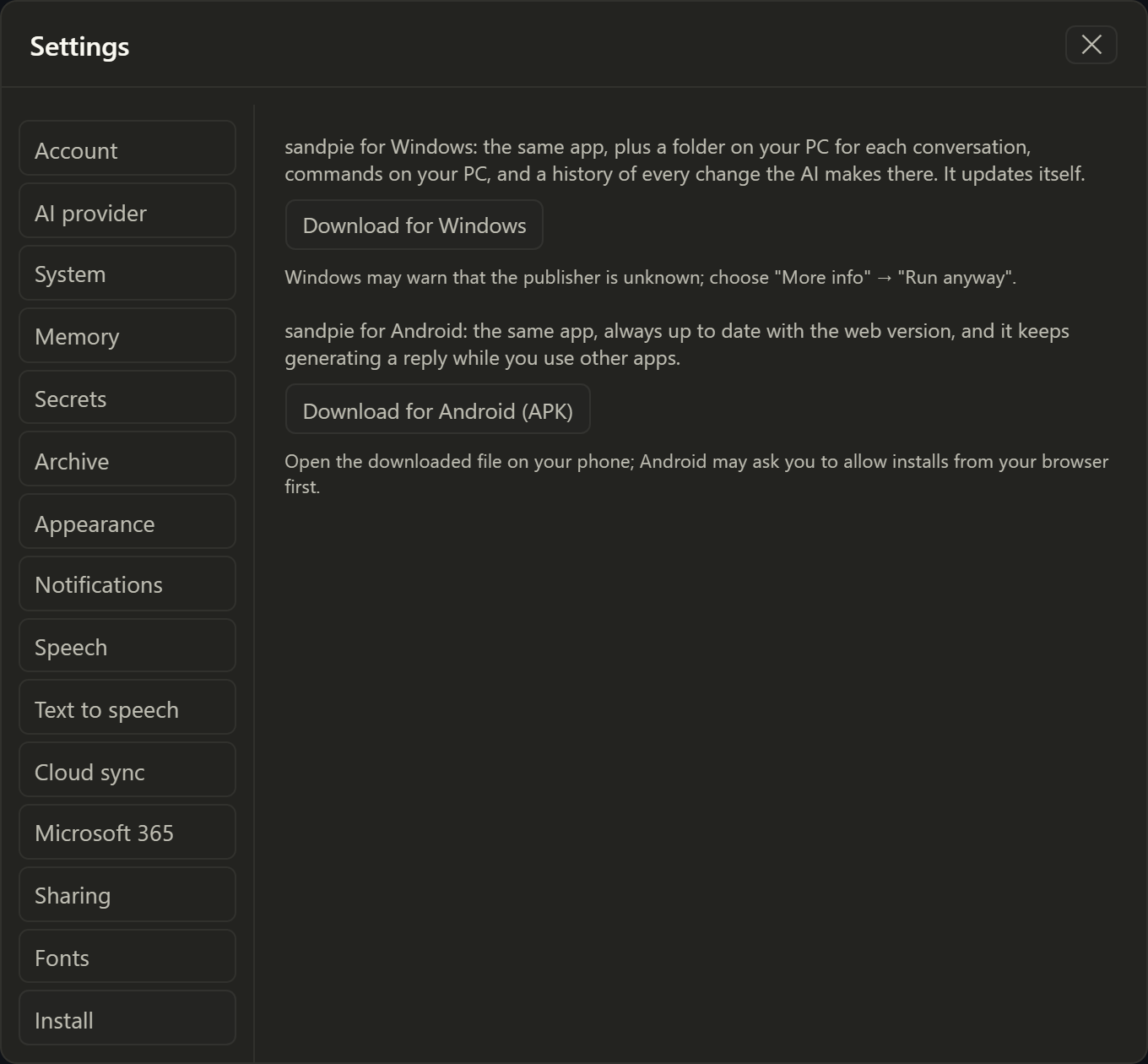
Updates are automatic. Each time you open the app it checks for a new version and installs it before starting. Changes to sandpie itself arrive even without that, because the app always loads the live version.
Give a conversation a folder
Under the message box, the folder chip (to the left of the files chip) shows the conversation's folder. Click it to choose:
- Folder on this PC…: any folder on your computer.
- Browser folder…: a folder of your sandpie workspace (synced to the cloud), as in the browser.
- Auto folder: sandpie creates one for the chat and may move it to the right project later.
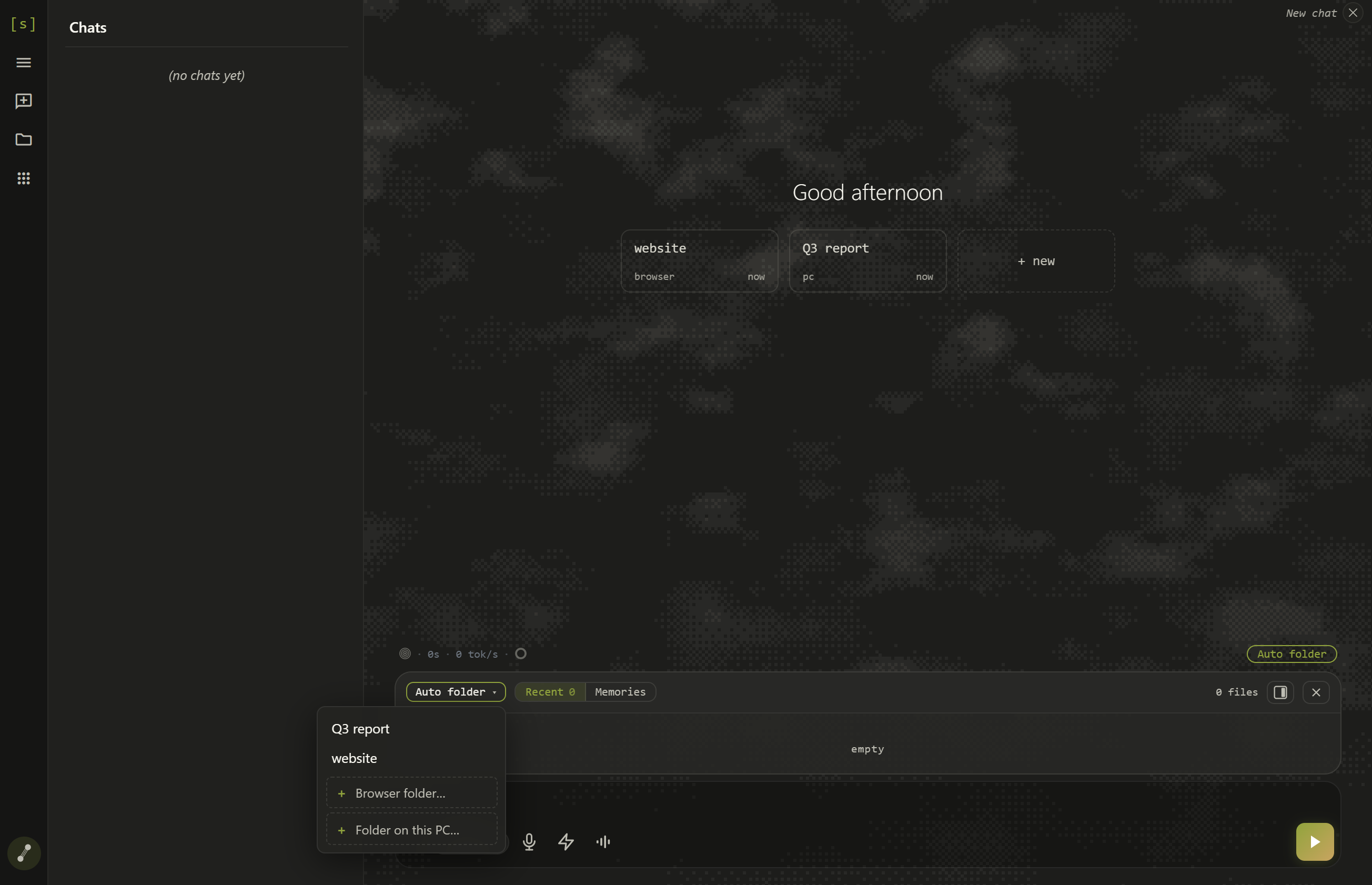
From then on, the assistant's file tools and commands work in that folder. It can read files anywhere, but it only writes inside the conversation's folder. Different conversations can use different folders.
Heads up: The assistant runs commands without asking you first, just like it does in its own sandbox in the browser. That's what makes it useful, and it's also why every change is recorded (see below). Give it the folder it needs, not your whole disk.
History: undo anything
Every change the assistant makes in a PC folder is recorded, one entry per reply. Open it from the folder chip: the ⚙ button next to the folder (History and settings of this folder).
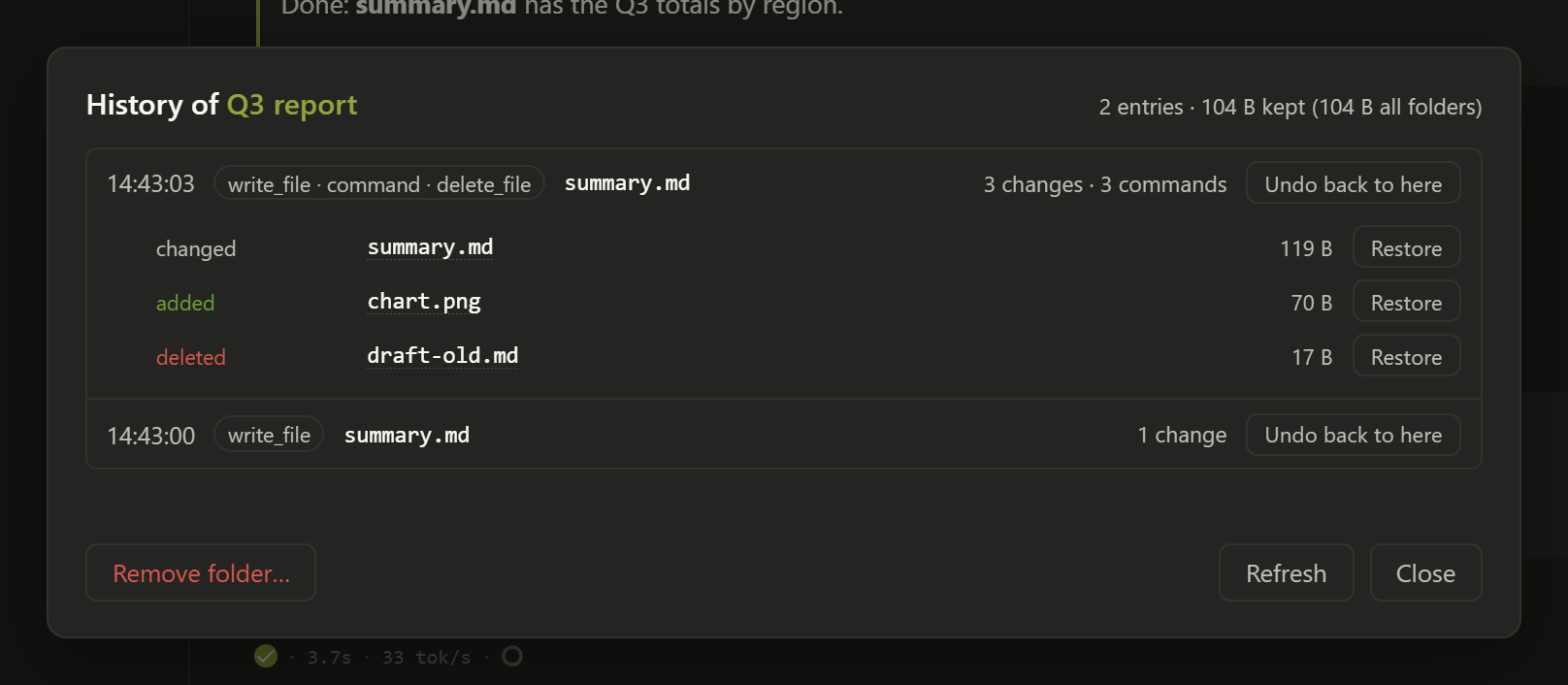
- Restore brings back the previous version of one file (or a deleted file).
- Undo back to here rewinds the whole folder to how it was at that point.
- You can preview an old version before restoring it, and sandpie always asks for confirmation.
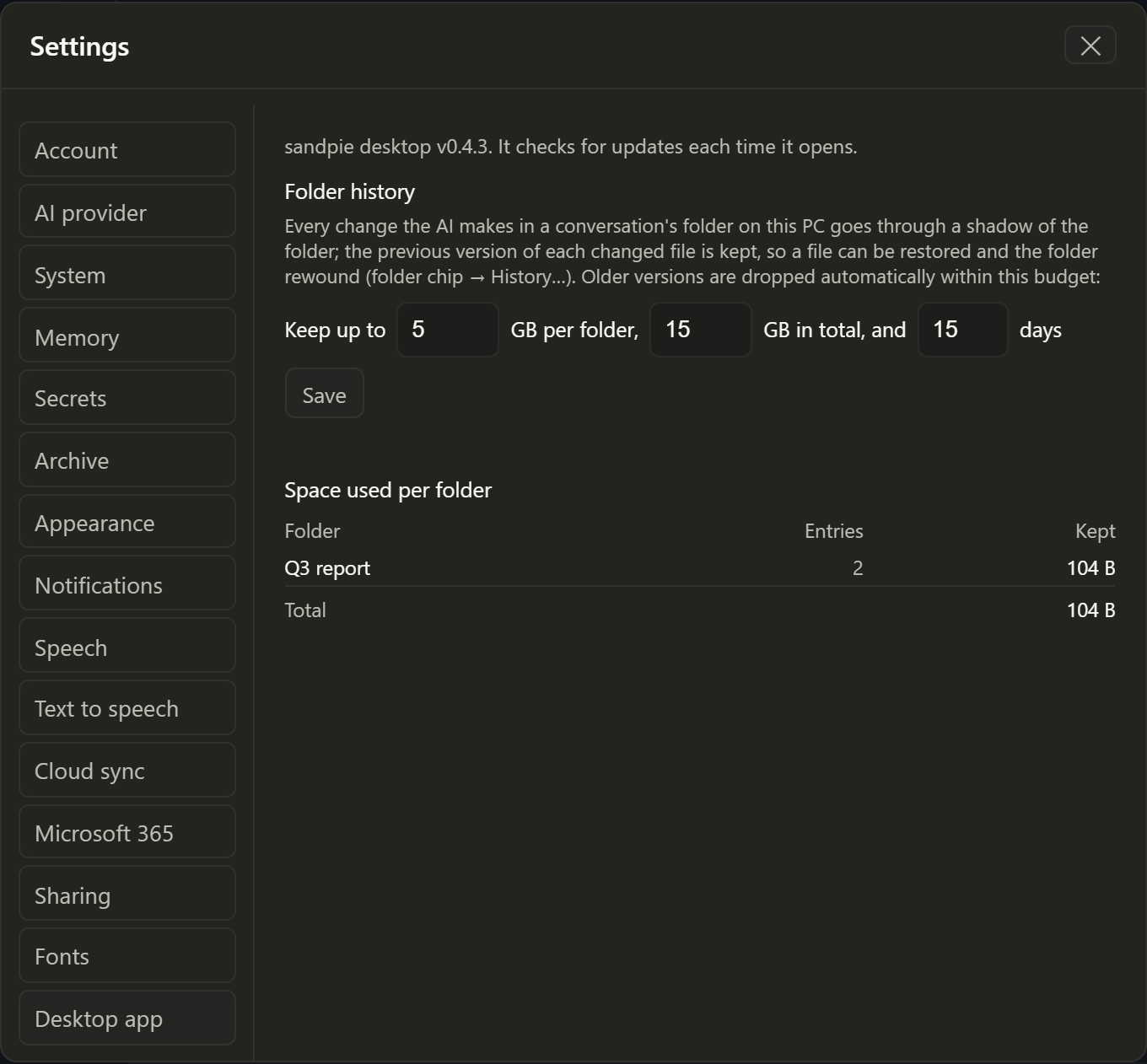
How much history is kept is set in Settings → Desktop app (only visible inside the desktop app). By default sandpie keeps up to 15 GB and 15 days in total, and older versions are dropped automatically.
Good to know
- Windows only for now.
- The folder you pick belongs to this PC: it is not synced, and another computer doesn't see it.
- If you mostly chat and don't need local files, the browser is just as good: everything else is identical.