Routines: sandpie works for you on a schedule
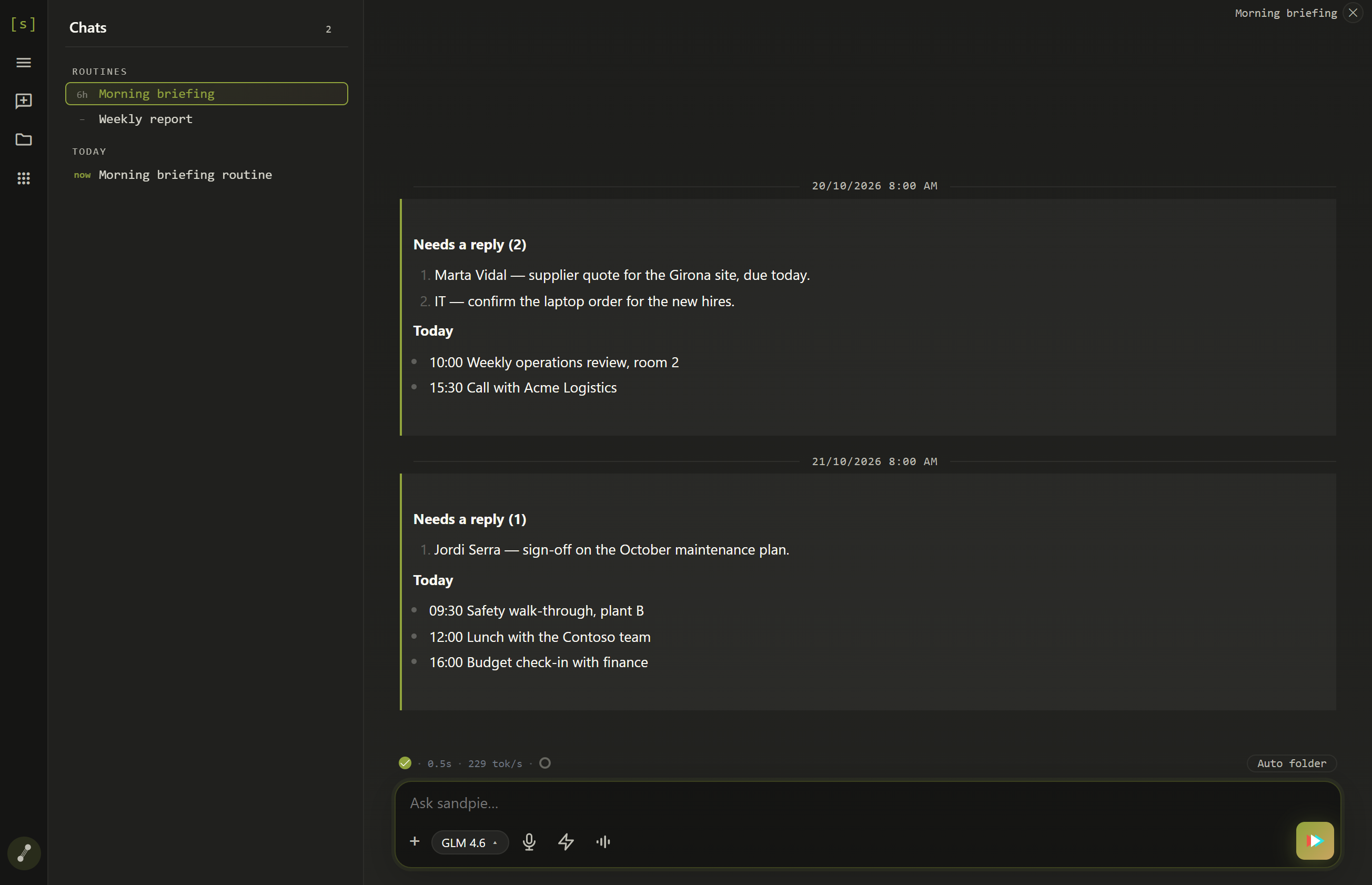
Ask sandpie to do something every morning, every Monday or every two hours, and it runs on its own. Each routine keeps one conversation with all its runs, so you can read the results whenever you like.
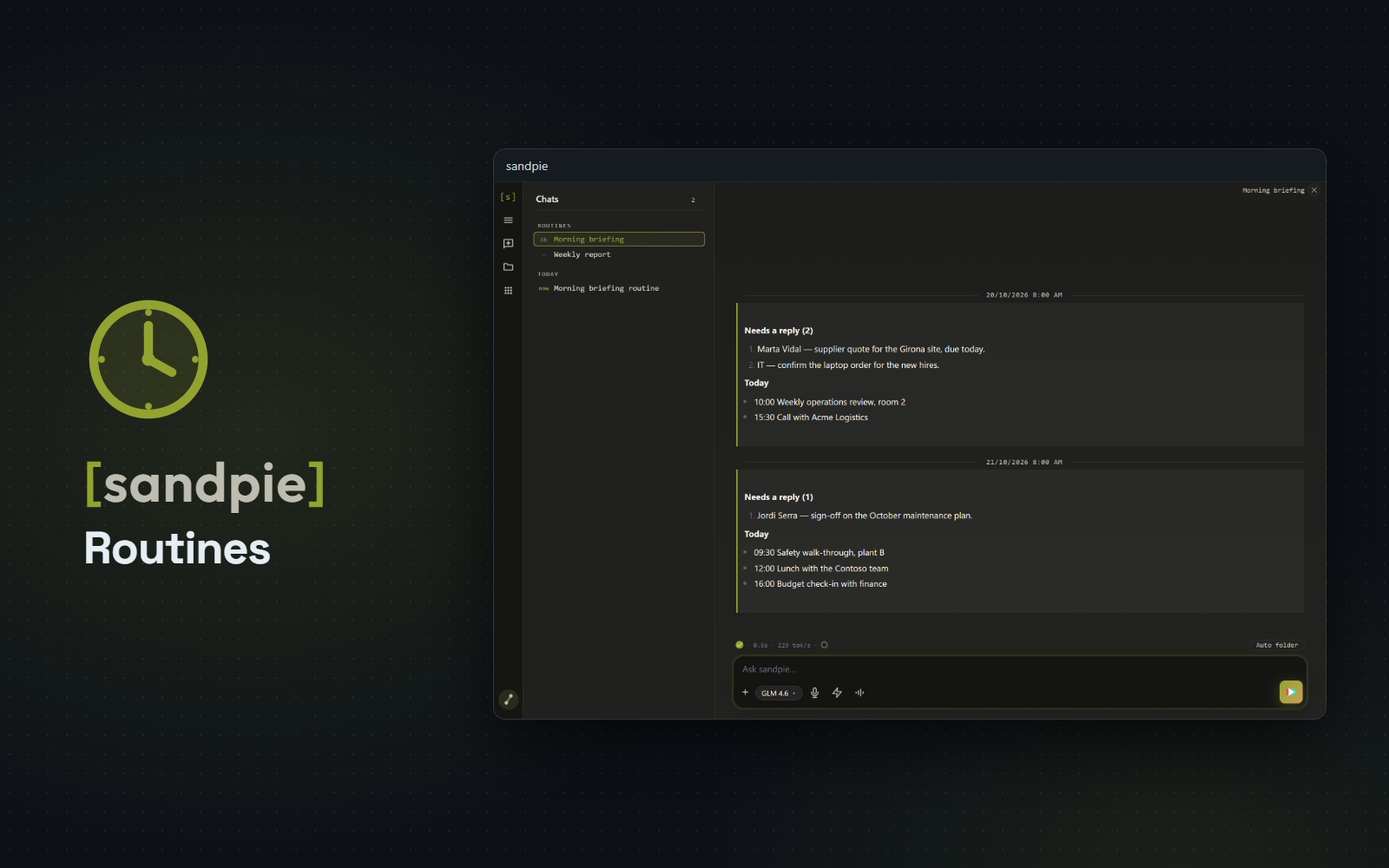
A routine is a request that sandpie runs by itself on a schedule. A few examples:
- "Every weekday at 8:00, give me the 10 most important industry news of the day."
- "Every Monday at 9, summarise last week's emails from customers." (with Microsoft 365 connected)
- "Every 2 hours, check this folder for new CSV files and update the summary table."
Create a routine
Just ask for it in a chat, saying what to do and when:
Create a routine that every weekday at 8:00 searches today's news about industrial gases and gives me the 10 most important headlines with a one-line summary each.
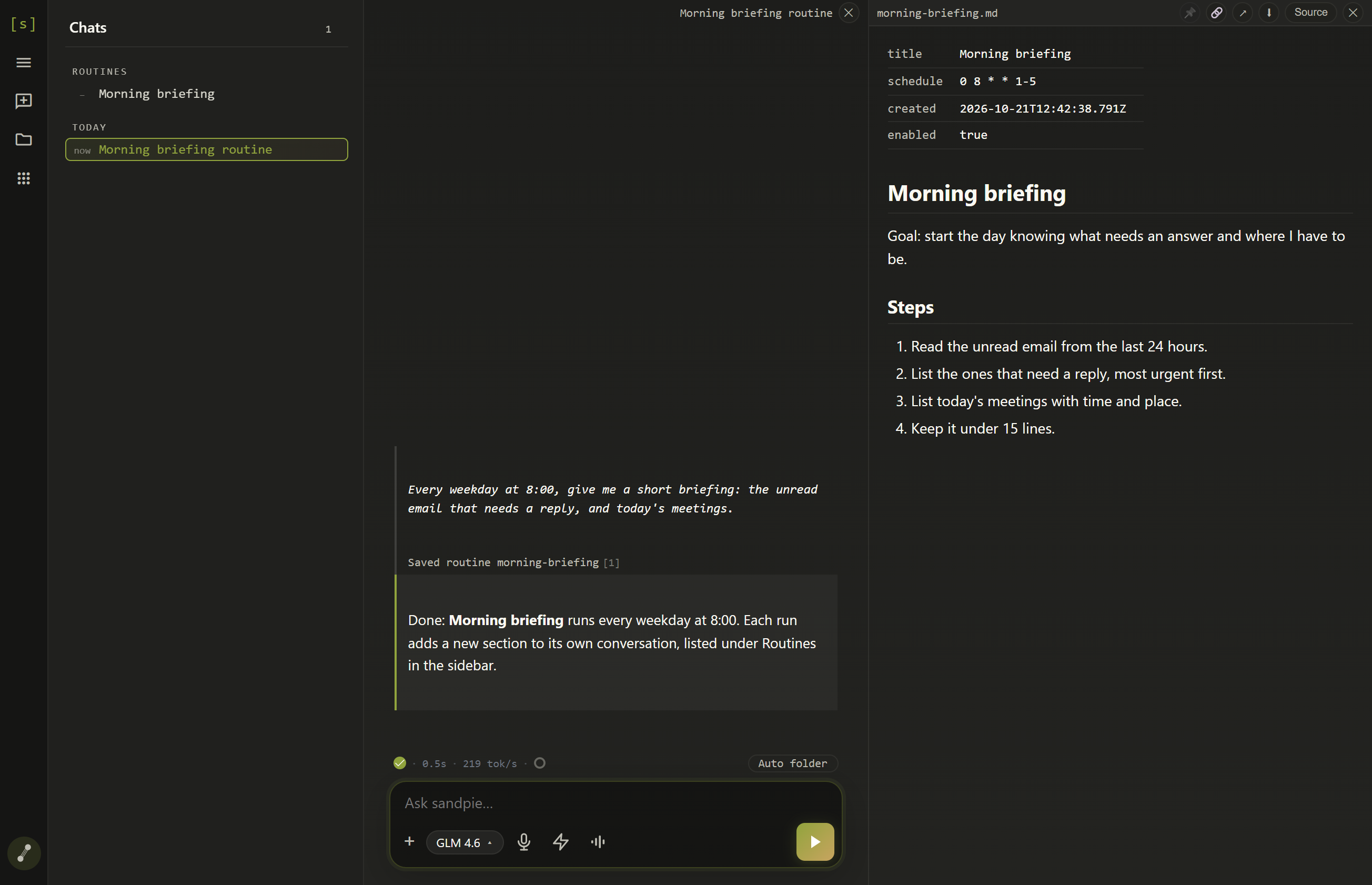
sandpie saves the routine (you'll see a Saved routine step in the chat) and tells you when it will run next. The routine appears in the sidebar under Routines, above your pinned chats.
Tip: Write the instructions as if nobody will be around to answer questions, because nobody will. Say exactly what you want and in what format. sandpie can't ask you anything during a run.
When it runs
You can say it in plain words ("every weekday at 8", "every 2 hours"), and sandpie converts it. Underneath, a routine's schedule is one of:
| Schedule | Meaning |
|---|---|
0 8 * * * | every day at 8:00 |
30 9 * * 1-5 | weekdays at 9:30 |
0 7 * * mon | Mondays at 7:00 |
@daily, @weekly, @monthly | once a day / week / month, at midnight |
every 2h, every 90m, every 1d | at a fixed interval (minimum 15 minutes) |
Times are your computer's local time. A new routine first runs at its next scheduled time, not immediately (use Run now to try it straight away).
Where the results go
Each routine has one conversation. Every run adds a new section to it, starting with a dated divider, so the whole history is in one place. Click the routine in the sidebar to read it. The badge next to it tells you its state:
- a pulsing dot: running now
off: paused- a red
!: something is wrong with it (for example an invalid schedule) –: it hasn't run yet
Run, edit, pause or delete
Right-click a routine in the sidebar (long-press on a phone):
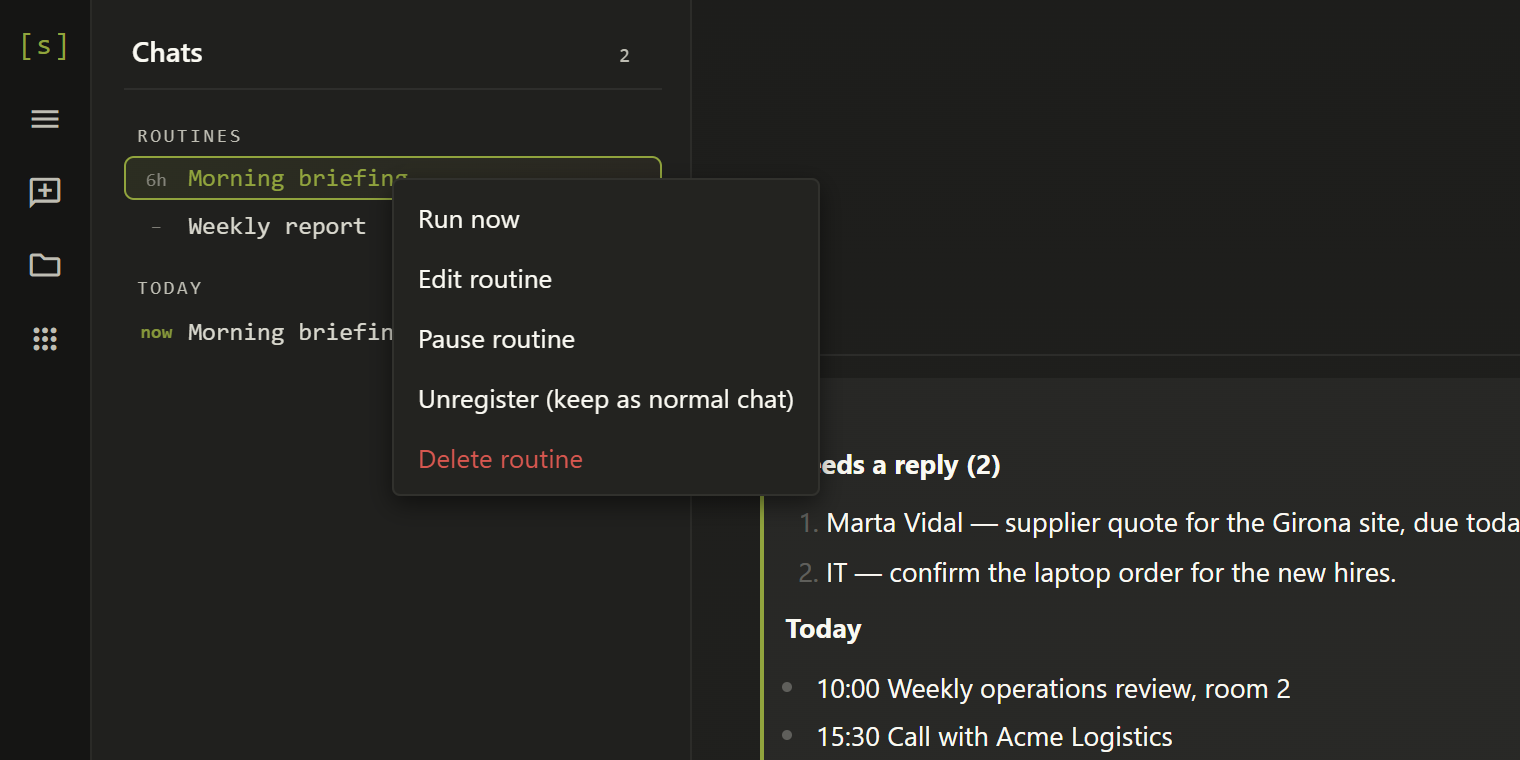
- Run now: run it immediately.
- Edit routine: opens the routine's file, where you can change the title, the schedule or the instructions. You can also just ask sandpie in a chat to change it.
- Pause routine / Resume routine.
- Unregister (keep as normal chat): stops the routine but keeps its conversation as an ordinary chat.
- Delete routine: deletes the routine and its conversation (it asks first).
Each routine is a small file in your workspace (sandpie/routines/<name>.md): a few settings at the top, then the instructions in plain text.
Good to know
- Routines run while sandpie is open: in a browser tab, the desktop app or the Android app. If sandpie was closed at the scheduled time, the routine runs once as soon as you open it again (missed runs are not repeated one by one).
- Routines sync through your cloud storage, so they follow you to your other devices.
- Every run uses the AI model like a normal message does, so prefer sensible intervals.