sandpie for Word
A sandpie button on Word's Home tab. Ask it to draft, edit or review the document you have open; edits arrive as tracked changes and review notes as Word comments.
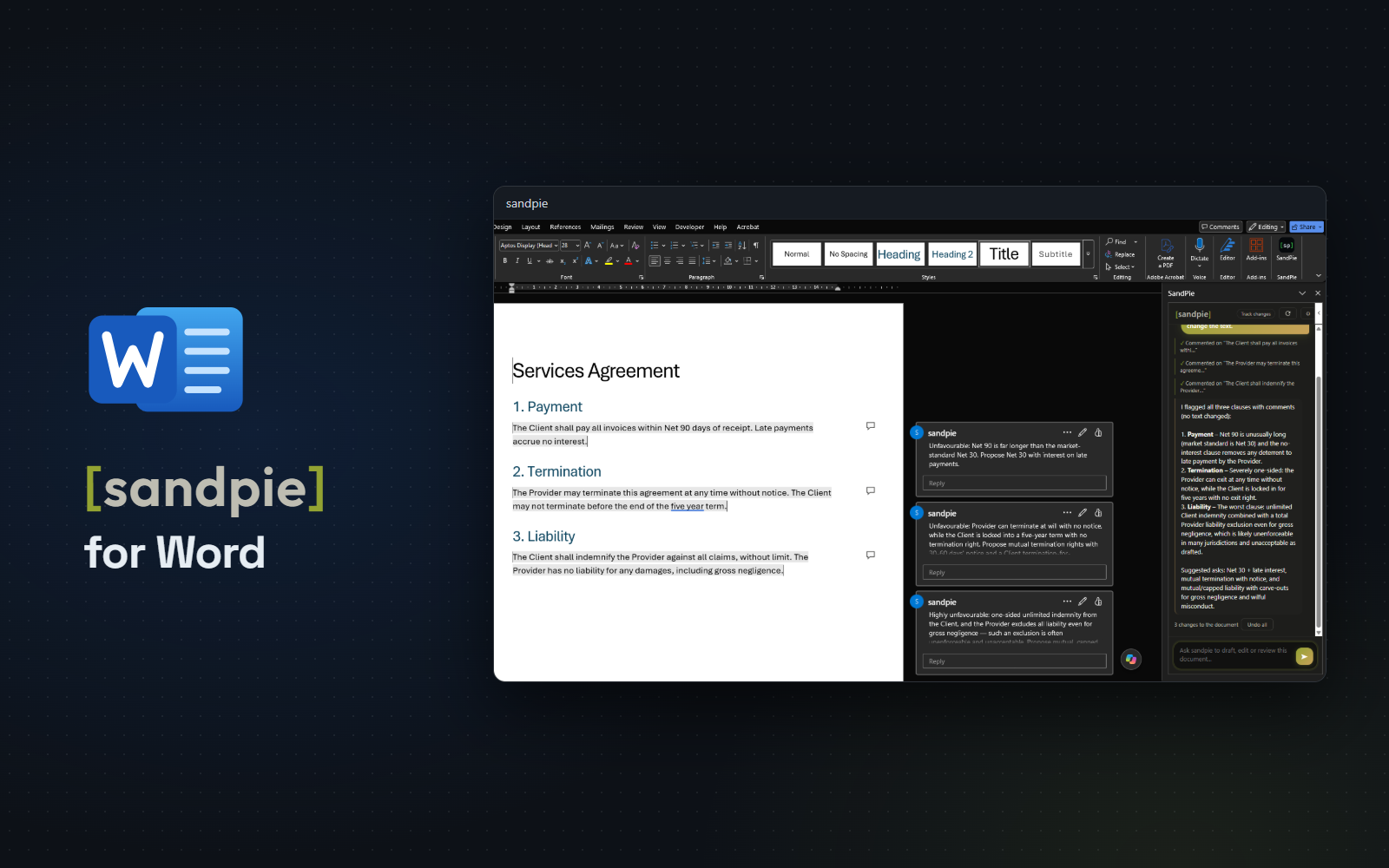
sandpie now works inside Microsoft Word. Click sandpie on the Home tab and a pane opens next to your document. Ask it things like:
- "Review this contract from the client's side and flag anything unfavourable."
- "Rewrite the Termination section as a bulleted list, with 30 days' notice for both parties."
- "Draft a one-page status report with a table of tasks and owners."
- "Fix the typos" or "Add a footnote to the liability clause."
It reads the document you have open, including the text you have selected, and works on it directly: real headings, lists, tables, comments and footnotes, not text pasted into a chat.
Install sandpie for Wordsandpie.app/office/install
Install
You do this once. The button stays on the Home tab after Word restarts.
- Close Word. On sandpie.app/office/install, click Download installer and run the downloaded file.
- Open Word. On the Home tab, click Add-ins, then Advanced... at the bottom of the menu.
- Open the Shared Folder tab, choose sandpie and click Add.
- Click the new sandpie button on the Home tab, then Sign in with sandpie and approve it in the window that opens.
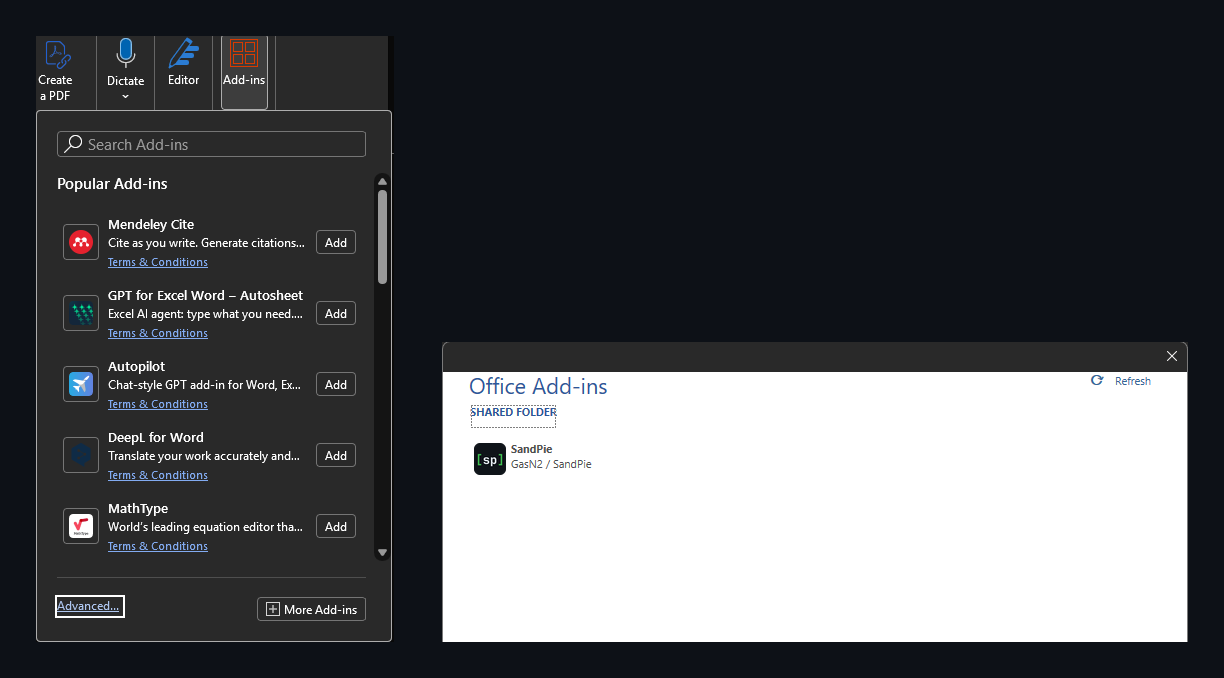
Tip: Use Advanced..., not More Add-ins. More Add-ins opens Microsoft's store, which doesn't list sandpie.
What it can do
- Precise edits: fixes a word, a sentence or a clause where it is, and leaves the rest of the formatting alone.
- Rewrite a section: everything under a heading, up to the next heading.
- Draft: new sections or whole documents, with headings, bulleted lists and tables.
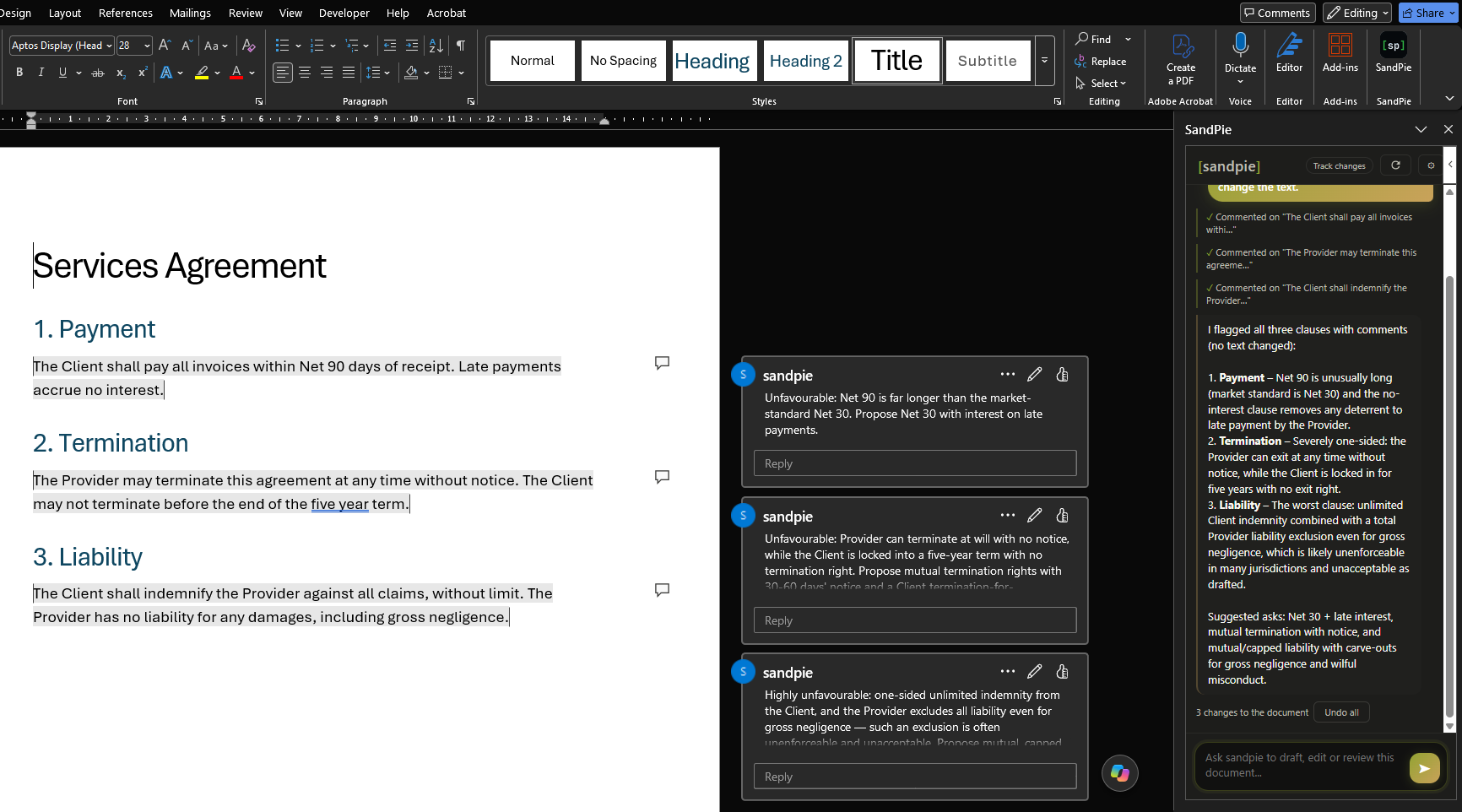
- Review: puts a Word comment on each clause it wants to flag, then sums up its findings in the pane.
- Footnotes, and web search with sources when it needs facts.
- Long documents: it reads the outline first and then only the parts it needs.
You stay in control
The chip at the top of the pane shows how edits are applied. Click it to switch, or choose in Settings (the gear):
| Mode | What happens |
|---|---|
| Track changes (default) | Every edit is a tracked change. Accept or reject it in Word's Review tab. |
| Ask before edits | Each edit appears as a card showing before and after, with Apply and Skip. |
| Edit directly | Edits go straight into the document. |
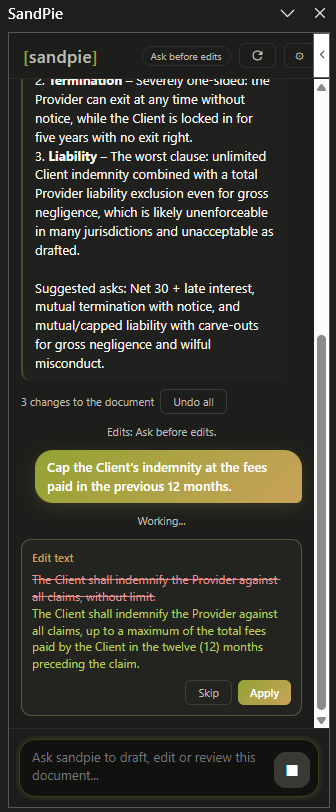
- After each request, Undo all puts the document back exactly as it was before that request.
- While it works, the send button turns into Stop.
Settings
The gear opens the model, how edits are applied, the language (Automatic follows Word's language; or English, Español, Català) and Log out. The sign-in lasts 30 days.
Good to know
- Word for Windows (Microsoft 365). Word on the web and on Mac are not covered.
- It edits the document open in Word but doesn't save it: save as usual.
- It uses your sandpie account and the same models as the rest of sandpie.